

14 looks · poses kept · up to 4 at once · 2 credits a picture
Photo to Anime: Your Photo, Redrawn as Anime or a Cartoon
Pick a photo — you, your friends, your pet, your street — choose the Anime look, and Image Studio redraws it as a hand-drawn anime illustration with clean line art and bright cel shading. The framing, the people and their poses stay where they were; everything is drawn anew in the look. Prefer a 3D cartoon, a comic book, a pencil sketch or watercolour? They are among 13 more looks. Make up to 4 versions at once; each costs 2 credits, and a picture that is blocked or fails costs nothing.
- Editing and exports are free
- Nothing charged for a failed picture
- Kept in your gallery
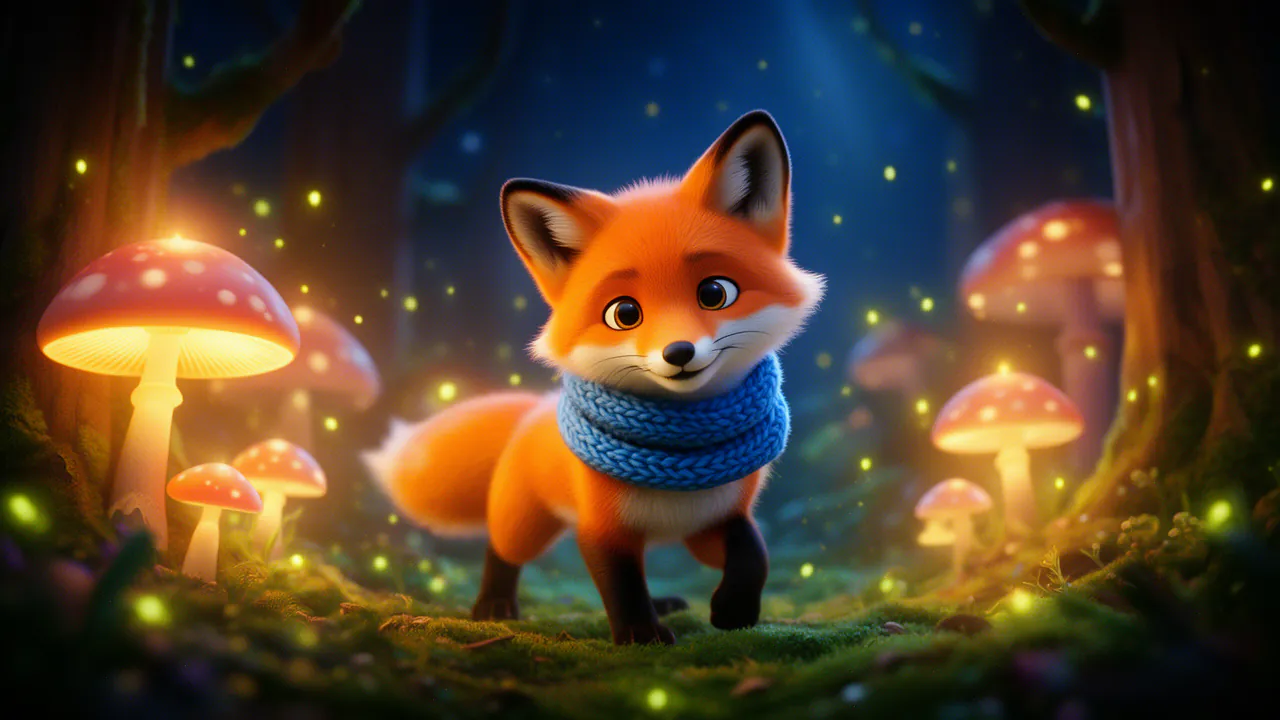
4 pictures · pick one
- CreateA picture from your words, up to 4 at once
- EditSay what to change
- TransformSame picture, a new look
- InpaintPaint a part to change or erase
- ExtendWider, taller, or out from a side
- Upscale2× or 4×, sharper
- ReferenceUp to 3 pictures to work from
How to turn a photo into anime
Four steps. A clear, well-lit photo gives the cleanest drawing.
Add a photo
Upload a JPEG, PNG, WebP or iPhone HEIC photo of up to 20 MB, or pick one from your gallery.
Choose Transform, then Anime
Transform redraws your picture in a new look. Anime is the first of its looks.
Add a few words if you like
Optional: “keep the sunset colours”, “make it night”, “add falling cherry blossoms”.
Transform
Choose how many to make, up to 4, and press Transform. Keep the one you like; More like this makes new versions of it.
14 looks, from anime to stained glass
Every look keeps the composition, the subjects and their poses, and redraws the rest.
Anime
A hand-drawn anime illustration: clean line art, vibrant cel shading.
3D cartoon
A polished 3D animated look, round and soft.
Comic book
Bold ink outlines and halftone shading.
Pencil sketch
A detailed drawing in graphite on paper.
Watercolour and oil painting
Soft washes on textured paper, or visible brush strokes.
Claymation
A scene made of modelling clay, in soft studio light.
Pixel art and low poly
Retro pixels in a limited palette, or flat-shaded 3D facets.
Pop art, woodblock print, stained glass, cyberpunk and vintage film
Five more, for posters, covers and something different.
What stays and what changes
Transform keeps where everything is: the framing, the people, their poses and the main shapes of the scene. Faces, hair, clothes and backgrounds are redrawn in the look, so the result reads as a drawing of your photo rather than the photo with a filter on top. The likeness is close, not exact.
Because it is redrawn, a Transform is a new picture, not an effect you slide back. Your original stays in your gallery, ready to transform again in another look.
Put yourself in a new anime scene
Transform keeps your photo’s scene. To put a person somewhere new, use Reference: give it up to 3 photos of the person, describe the scene — “standing on a rooftop at night, city lights behind” — and pick the Anime style. You can also make anime pictures from words alone, with Create and the same style.
Make it a profile picture, a sticker or a poster
The result is a picture in your gallery, ready for the next step.
Profile picture
Crop it square in the free layer editor and export it.
Sticker
Remove background keeps the character and drops the background, as a transparent PNG.
Poster or wallpaper
Extend it to 9:16 or 16:9, then upscale it twice or four times.
Words on it
Add a title or a caption with any of the editor’s fonts, free.
What it costs
You pay per picture, not per month.
2 credits a picture
Each transformed picture costs the same; make up to 4 at once and the total is on the button before you press it.
Nothing for a failed picture
Credits are held while pictures are made and charged only for the ones you get; a blocked or failed picture costs nothing.
Editing and exporting are free
Crops, text, adjustments and exports in the layer editor never cost credits.
No subscription
Pay with Voxmin credits, the same balance as the rest of Voxmin. Purchased credits never expire.
Use photos you have the right to use
Transform photos of yourself, or of people who agreed to it. Do not use it to show a real person in a way they would not accept, or to impersonate anyone.
Every prompt and every new picture is checked against the content rules before it is shown or charged; sexual content involving minors is always refused.
Questions
More from Voxmin's studios
Your photo, your pose, drawn in a new look.
Sign in to start. Each picture is 2 credits; editing and exports are free.