
Create · edit · inpaint · extend · upscale · 2 credits a picture
AI Image Generator and Editor: Make It, Fix It, Finish It
Image Studio does the two jobs most AI image tools split in half. Describe a picture and get up to 4 to choose from; or bring one of your own and change it in plain words — paint over the part to replace or remove, grow it to a wider shape, restyle it, upscale it, cut out its background. Then open it in the layer editor to add text, shapes, adjustments and looks, and export it. Editing and exporting are free; each new picture costs 2 credits, and a picture that is blocked or fails costs nothing.
- Editing and exports are free
- Nothing charged for a failed picture
- Kept in your gallery
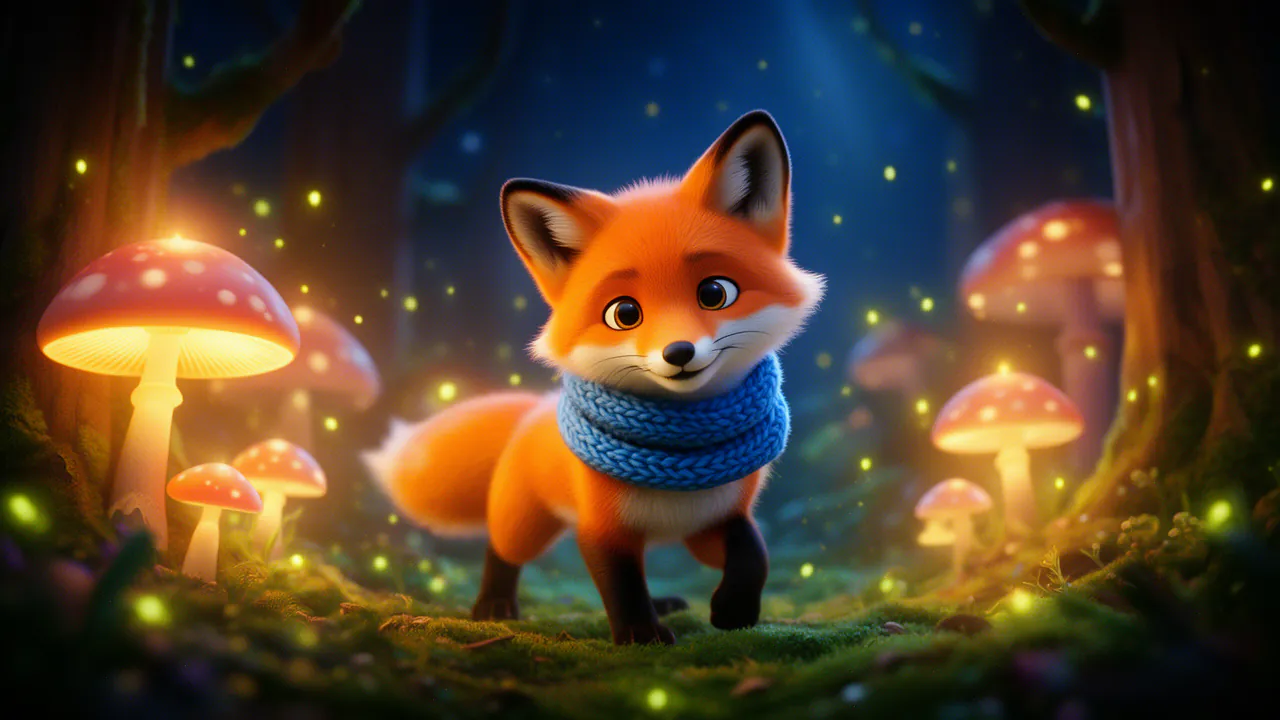
4 pictures · pick one
- CreateA picture from your words, up to 4 at once
- EditSay what to change
- TransformSame picture, a new look
- InpaintPaint a part to change or erase
- ExtendWider, taller, or out from a side
- Upscale2× or 4×, sharper
- ReferenceUp to 3 pictures to work from
Every way to make or change a picture
Nine modes, one place. Each new picture is kept in your gallery, so the next step can start from it.
Create — an AI image generator
Describe the picture, pick one of 11 shapes from square to 32:9 and one of 15 styles — photo, cinematic, anime, watercolour, 3D render and more — and get up to 4 at once.
Edit — change it in words
Say what to change, or tap one of 12 quick edits: golden hour, make it night, plain white background, restore an old photo, colourise, remove clutter.
Transform — image to image
Redraw the same picture in another look — 14 of them, from anime and watercolour to claymation, pixel art and stained glass — keeping the composition and the poses.
Inpaint and Erase — an AI object remover
Paint over an area with the brush. Say what goes there, or set the tool to Remove and it is filled in with the background around it. Everything you did not paint stays exactly as it was.
Extend — outpaint to a new shape
Grow a picture to a wider or taller shape, or by side, and the new edges are filled in to match the light and perspective — a portrait becomes a banner, a square becomes a story.
Upscale — 2× or 4×
Make a picture bigger and sharper, up to 8,192 pixels on its long side, for print or a large screen.
Reference — people, objects, a look
Give up to 3 pictures of a person, a product or a look, describe the new picture, and it is made with them in it.
Remove background
Keep the subject and take the background away, as a transparent PNG ready for a product listing, a sticker or a thumbnail.
More like this
Liked one? Make variations of it with a new seed, without writing the prompt again.
How to make and edit a picture
Four steps, whether you start from words or from a photo.
Start from words or a picture
Write a description, or add a photo from your device, your gallery or a FloStudio project.
Pick the mode
Create, Edit, Transform, Inpaint, Extend, Upscale or Reference. The price is on the button before you press it.
Paint or describe the change
Brush over the area for Inpaint and Erase, choose a shape for Extend or a look for Transform, or just say what you want.
Finish it in the editor
Add text, shapes and more pictures as layers, adjust and restyle, then export or save it to your gallery.
A layer editor that does not charge you to edit
The AI makes the picture; the editor finishes it, for free. Stack pictures, text, shapes and drawings as layers, move, scale, rotate and crop them, and blend them with 16 blend modes. Every picture layer has 11 adjustments — brightness, contrast, saturation, exposure, warmth, tint, highlights, shadows, vignette, blur and sharpen — and 32 colour looks, the same ones FloStudio uses on video.
Text comes with any of a dozen fonts, a shadow and an outline. Start from a canvas made for where it is going — a square post, a story, a video thumbnail, a banner — then export a PNG, JPEG or WebP at up to twice the size. Designs save themselves as you work, and the AI tools work right inside the editor on any picture layer.
What it costs, plainly
You pay for pictures, not for time in the app.
2 credits a picture
Every new or changed picture — created, edited, inpainted, extended, upscaled — costs the same, shown on the button before you press it.
Nothing for a failed picture
Credits are held while a picture is made and charged only when it is ready. A picture that is blocked by the content rules, fails or is stopped costs nothing.
Editing and exporting are free
Layers, text, adjustments, looks, crops and exports never cost credits.
Kept until you delete them
Every picture stays in your gallery, ready to edit again, download or start the next picture from.
Also from AI Studio and from your AI agent
Image Studio is not only a page. Ask AI Studio’s chat for a cover image while it writes your song, and the picture appears in the conversation, ready to open in Image Studio.
Working with an AI agent or a coding assistant? Connect it to Voxmin over MCP with a personal token and a daily credit cap, and it can make and edit pictures for you at the same price per picture. The AI integration docs show how, app by app.
The content rules
Every prompt and every new picture is checked against the content rules before it is shown or charged; a picture that breaks them is blocked and costs nothing. Sexual content involving minors is always refused.
Use photos you made or have the right to use, and do not use Image Studio to impersonate a real person.
Questions
Describe it. Paint over what is wrong. Finish it for free.
Sign in to start. Editing and exports are free; each new picture is 2 credits.